Web browsers intuitively cache frequently accessed resources so to reduce load times when revisiting the webpage in the future. This may be the header image of a blog you frequent, by example. Instead of downloading it each time, the browser stores a local copy in the cache. The browser will periodically compare the locally cached version of the file to the live version on the server, and if the server version is newer, the browser will update it's cached version with the latest version from the web.
If we've recently made significant changes to your site, some functions may not cooperate if certain files are cached on your local machine. The quickest fix here is to perform a hard refresh on the page in question. A hard refresh asks your browser to ignore local cache and to instead load all of webpage's assets from the server. Note that this is only for a specific page and it's assets, and sometimes simply deleting your entire cache is the best path froward.
Deleting your entire browser cache would clear the cache of all websites your browser has cached, not cached Storefront files. Periodically deleting cache (and cookies) is generally considered a best practice, but note that performing this task will clear any sign-in cookies, logging you out of most websites.
The key combination to perform a hard refresh depends on both the computer's operating system and the web browser:
Windows
(any version)
- Chrome: Control + F5
- FIrefox: Control + Shift + R
- Edge: Control + F5
MacOS
- Chrome: Command + Shift + R
- FIrefox: Command + Shift + R
- Safari: Option + Command + E
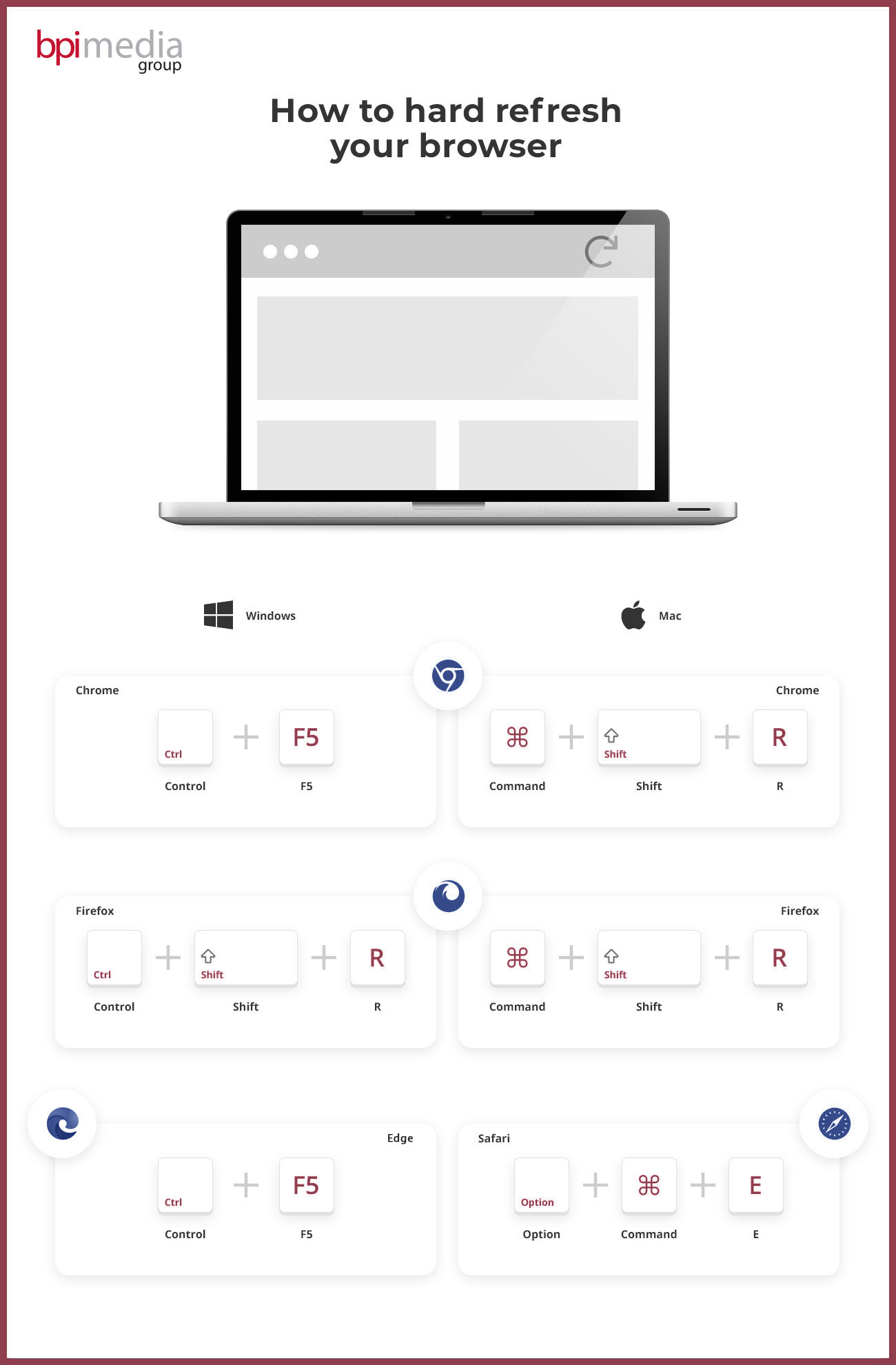
Here is an infographic depicting the keyboard shortcuts to perform a hard refresh: